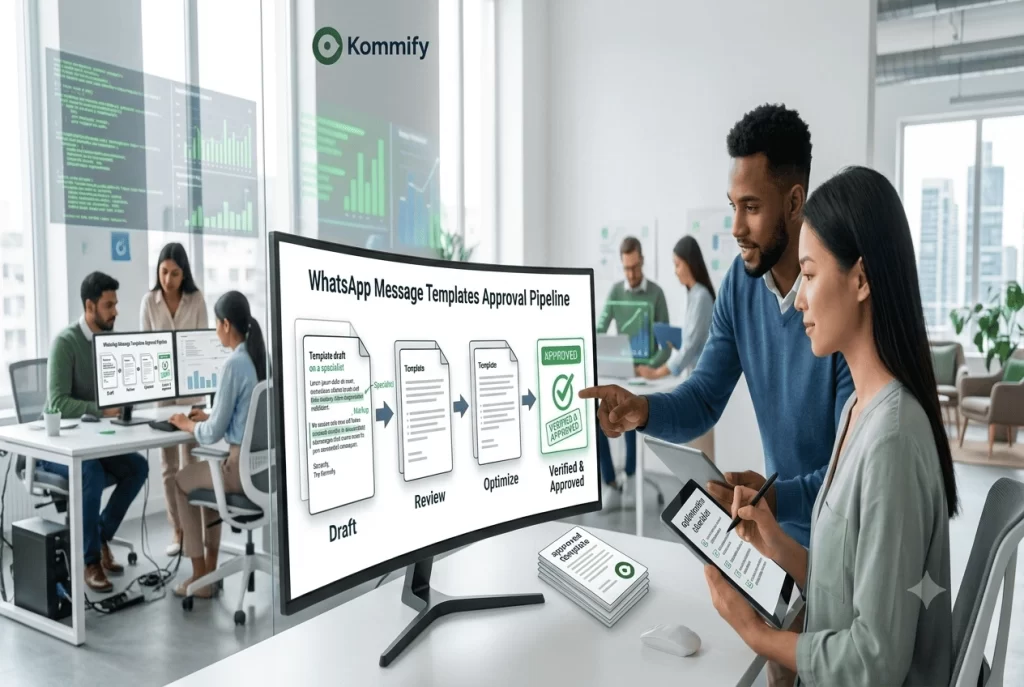
⚡ Quick Answer
WhatsApp message templates are pre-approved message formats required for all business-initiated conversations via the API. Templates have three categories: Marketing (promotional), Utility (transactional — orders, reminders), and Authentication (OTPs). You submit templates via your BSP dashboard or Meta’s Cloud API. Approval takes 24-72 hours. Getting the category right is critical — wrong categorization increases your cost by up to 7.5x.
WhatsApp Message Templates: How to Write, Submit and Get Approved Fast
Before you can send a single outbound message through the WhatsApp API, you need an approved template. Templates are Meta’s quality control mechanism — they review your message format before you use it, not after. This is both an inconvenience and a feature: it means spammy content gets filtered out before it reaches users.
But here’s what nobody tells you: the way you write your template determines not just whether it gets approved, but what it costs you to send. This guide covers both.
Template Categories: This Is Where the Money Is
Every template must be classified into one of three categories. The category you choose determines the conversation rate you pay.
- Marketing: Promotional content — sales, offers, coupons, product announcements, re-engagement. Rate: ₹1.09/conversation.
- Utility: Transactional content — order confirmations, shipping updates, payment receipts, appointment reminders, subscription renewal notifications. Rate: ₹0.145/conversation.
- Authentication: OTPs, login verification, password resets. Rate: ₹0.145/conversation. Use Meta’s built-in Authentication template type for best approval rate.
Template Formatting Rules You Must Know
Templates support four components: Header (text, image, video, or document), Body (the main message, up to 1024 characters), Footer (small text below body), and Buttons (call-to-action or quick reply, up to 3).
Variables in templates use double curly braces: {{1}}, {{2}}, etc. They must be in sequential order. You cannot have {{2}} without {{1}}. Variable values are filled at send time by your system — a customer’s name, order number, amount due, etc.
Writing Templates That Get Approved First Time
Meta rejects templates for several predictable reasons. Avoid all of these and your approval rate will be near 100%:
- Don’t use templates to threaten or pressure customers (“Pay immediately or face legal action” = rejection)
- Don’t include external URLs in marketing templates from domains not verified in your Business Manager
- Don’t use vague variables that could contain anything — Meta wants to know what {{1}} will actually contain
- Don’t create templates that are essentially identical to previously rejected templates with minor word changes
- Don’t classify promotional content as utility — Meta’s systems detect this and will re-categorize or reject
Template Examples That Work
Utility — Order Confirmation
Hi {{1}}, your order #{{2}} has been confirmed! 🎉 Estimated delivery: {{3}}. Track your order: {{4}}. For any issues, reply to this message.
Marketing — Flash Sale
{{1}}, today only: {{2}}% off on {{3}}! 🔥 Offer ends at midnight. Shop now: {{4}}. Reply STOP to opt out.
Authentication — OTP
Your {{1}} verification code is {{2}}. Valid for {{3}} minutes. Do not share this code with anyone.
📊 Industry Data
Businesses that misclassify utility templates as marketing spend an average of ₹28,000/month more per 50,000 conversations than those that correctly categorize their templates. This is the single biggest avoidable cost in WhatsApp API usage.
Frequently Asked Questions
How long does WhatsApp template approval take?
Most templates are approved within 24-72 hours. Simple utility and authentication templates often get approved in under 12 hours. Templates with external URLs, phone numbers, or promotional language that needs human review can take longer.
Can I edit an approved WhatsApp template?
You cannot edit an approved template — you must submit a new version, which goes through approval again. If you have a time-sensitive need, keep a few “evergreen” templates approved and ready as backups.
What happens when a WhatsApp template is rejected?
You’ll receive a rejection reason from Meta. Common reasons: policy violation, variable misuse, wrong category classification, or insufficient context for what the template will be used for. Address the specific reason and resubmit — don’t just reword the same message.